Updating CSV Export Limit
To update the export limit for CSV files in OCSM, please follow the procedure below.
- Sign in to your OCSM ME instance.
- Click on the username in the upper-right corner, and from the drop-down, click “Settings”. You will be presented with the Settings dialog.
- In the left-hand side of this dialog, navigate down to and click on System Settings.
- In the search box at the top of this screen, enter “csv”. This will filter the listed settings to show only those items relating to “csv”.
- Double-click the entry “Maximum number of lines exported with CSV export”.
- Set this to 50000, then click “Update”
(Note: if you are running OCSM release 5.0 or newer, you will be able to set this as high as 500,000. If you are taking advantage of our free report offer, we request you limit the export to 100,000.)

Exporting Call Data
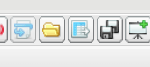
To export call data, please return to the Calls page by clicking the Calls link on the left-hand side of your OCSM ME. Click the “CSV Export” button. This is the icon sitting between the folder and floppy-disc icons, in the upper-right corner of the raw calls list panel that resembles an Excel worksheet (see image at right). You will be presented with a dialog showing the progress of the export. We recommend that you leave this open until it completes, so that you can download the resulting file.